


Full Wi-Fi Bars but Calls Still Drop? Here’s What to Check
You take a look at your phone. Your Wi-Fi signal displays full bars. You initiate a call with a client. After thirty seconds into the call, the client’s voice becomes robotic. Then, the call ends.
That may seem like something you’re imagining, however you’re not. And you’re certainly not the only person experiencing issues. What those bars show you is merely one small piece of information regarding your phone’s communication with the world outside your immediate area.
Fortunately, most potential causes of dropped calls can be discovered with a couple of simple tests. Once discovered, many can be resolved within an afternoon. Below is a list of step-by-step troubleshooting guides for determining if the issue lies with your phone, your router, your Internet Service Provider (ISP) subscription plan, or your building’s cellular coverage.
Why Full Bars Don't Guarantee a Good Call
The Wi-Fi indicator displayed on your smartphone represents how strong your smartphone hears your router. However, it does not indicate how quickly your Internet connection is functioning; whether there are other users competing for bandwidth; or whether data transmission is occurring efficiently once past the router. As such, you could be sitting directly beside a router displaying full bars, yet struggle with connectivity on the other side of the router.
Additionally, unless Wi-Fi Calling is enabled, standard telephone communications will not utilize Wi-Fi – they’ll run solely on the mobile network. Therefore, even though you have full Wi-Fi bars, if you only have one bar of mobile signal strength, the amount of bars showing on your Wi-Fi display is entirely irrelevant to your ability to establish a successful call. Thus, we begin with identifying which network your calls are utilizing.
Step One: Check Whether Wi-Fi Calling Is On
Wi-Fi Calling enables your smartphone to transmit regular calls via your Internet connection whenever your mobile signal is weak. Many smartphones and nearly all major carriers provide Wi-Fi Calling capabilities; nevertheless, it sometimes needs to be activated manually.
On iPhones:
- Go to Settings > Phone or Mobile Data (or equivalent).
On Android devices:
- Go to the settings menu within the Phone application.
- Within the Network settings.
Once activated, a small “Wi-Fi” tag will appear adjacent to your carrier’s name in the status bar. If no tag exists, your calls remain on the mobile network.
Regardless of whether Wi-Fi Calling is active, a drop in call quality can occur when your phone transitions from Wi-Fi to mobile during a call, such as when you exit the office and enter your vehicle. If calls tend to drop more frequently when you move throughout the premises, transitioning between networks may be causing these drops.
Step Two: Test the Connection, Not Just the Signal
Voice communications require relatively low speeds, but a consistent and stable connection is essential. Conduct a speed test that includes latency (ping times), jitter and packet loss measurements. Ideally, perform the test at the exact time of day when you commonly lose calls.
To serve as a rough estimate, voice communications operate optimally when: • Latency is 150 ms or lower; • Jitter is 30 ms or lower; • Packet loss is 1% or lower;
While many people focus primarily on download speeds, upload speeds also play an important role in maintaining a stable voice connection — as both parties’ voices must travel back-and-forth through your Internet connection.
If the results of your speed test reveal poor performance metrics, identify any competing uses of your network resources. For example, someone using 4K video streaming, a cloud backup process operating in the background, or a large file being downloaded could potentially consume bandwidth sufficient enough to starve out a call. Many routers include Quality of Service (QoS) options to allow you to prioritize voice and/or video communications above all other traffic types.
Step Three: Look at Your Router
Your router may be the weakest point in terms of reliability and capability. Begin by attempting several easy-to-fix solutions: reboot it; inspect for firmware updates; and ensure that it is located in an easily accessible location and not hidden behind a television or inside a cabinet.
In addition to attempting these basic fixes, explore some additional configuration settings on your router. For instance, some routers contain an option known as SIP ALG that can negatively impact VoIP (internet-based phone calls); disabling this option may solve your issues. Additionally, depending on whether you possess a wireless mesh network system (multiple access points connected together wirelessly), a call may disconnect due to a transition in network topology between multiple nodes. To confirm this possibility, evaluate how well-placed each node is relative to one another.
Finally, since both bands — 2.4GHz (which provides better range) and 5GHz (which offers faster speeds) — exist on most routers today, attempt to place both nodes in locations providing optimal performance for both bands simultaneously.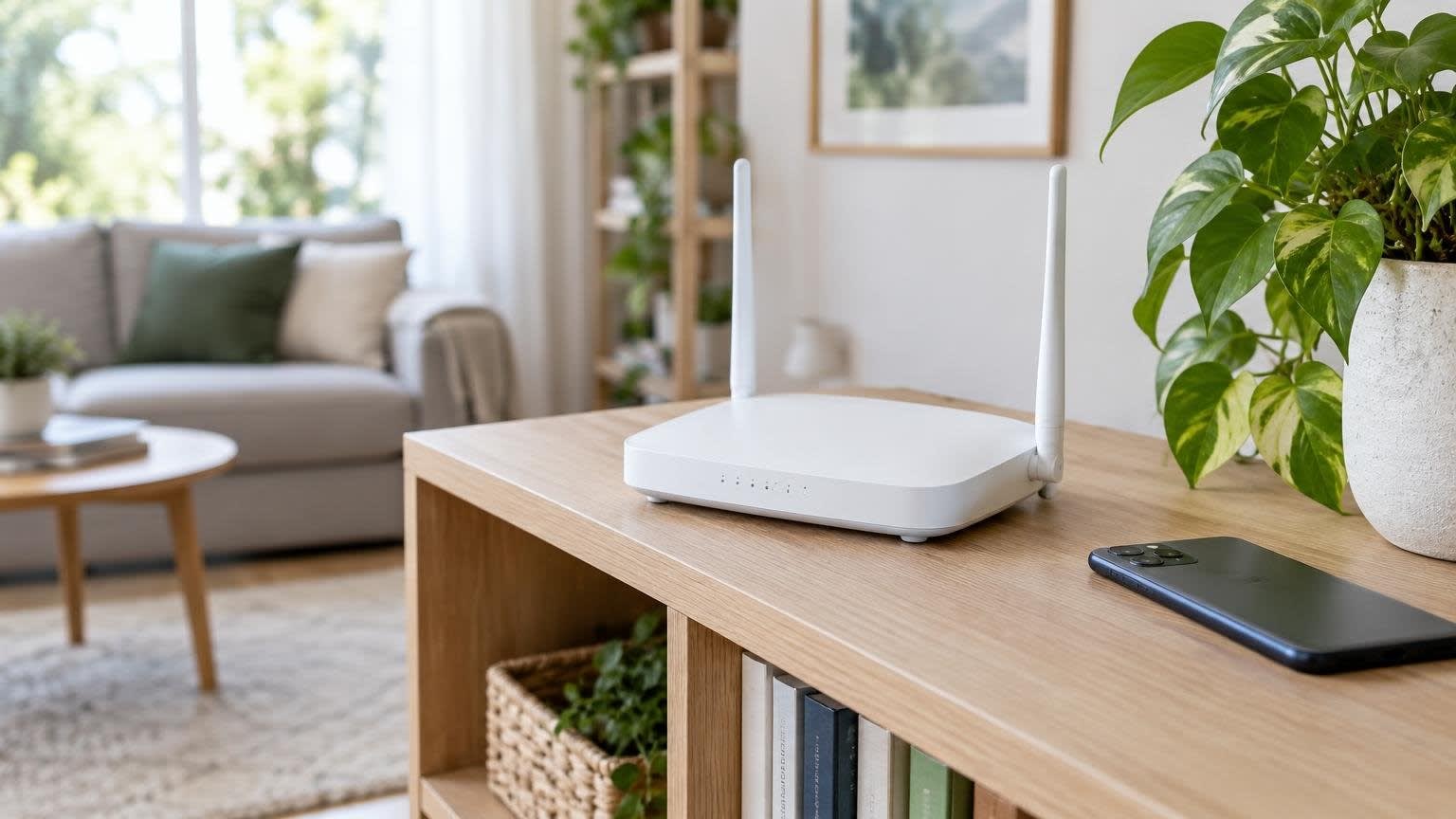
Step Four: Rule Out the Phone Itself
At times your local network may be solid and the issue rests with your phone. Complete any outstanding OS/software updates available from either your phone manufacturer or carrier — since many periodic updates fix issues related to VoIP calling functionality. Next, restart your phone — including restarting it and checking to ensure that your SIM card is securely inserted. Finally, if dropping calls persist after performing these actions, reset your phone’s networking preferences. Note that doing so will remove any previously stored Wi-Fi credentials.
Conducting comparisons will assist greatly in this regard. If another identical phone on the same Wi-Fi/Carrier combination maintains reliable connections without incident, it can safely be assumed that your phone is at least partially responsible for the issues experienced locally — rather than an issue with either the building itself or its associated connectivity.
When the Real Problem Is Weak Mobile Signal
Modern commercial structures are often surprising antagonists toward mobile signals. While brick/concrete/metal roofing/foil insulation/tinted glass designed to reduce heat transfer can hinder cell signal strength significantly, you might find yourself having excellent signal strength walking on the sidewalk immediately outside your building and only one bar inside. Wi-Fi Calling may help in situations like this; however, it cannot possibly remedy all instances where individuals move within the structure or clients contact you via mobile phone.
If you’ve determined that poor indoor cellular signal is indeed the primary source of dropped calls, installing mobile signal repeaters can provide a viable solution by capturing stronger signals near exterior walls and rebroadcasting them internally throughout the building. Only cellular signal boosters approved by your respective carrier are allowed for consumer use in Australia; therefore verify that any potential booster units meet requirements prior to purchasing.
When to Get Someone to Look at It
The steps listed above should enable you to troubleshoot the majority of typical cases resulting in lost calls. There are cases that are far more difficult to resolve based upon specific technical limitations inherent in particular systems — e.g., interference issues caused by electrical devices, deteriorating cables connecting components of a network setup, outdated/aging routers, etc. If you have tested each of the above steps and dropped calls continue to occur, booking in-home tech support can alleviate considerable frustration. Technicians can evaluate your network at various internal locations throughout the property; assess router placement and configuration; and determine whether faults lie with you or your ISP — saving you both time and money.
Why Dropped Calls Are a Business Problem
Dropping calls result in losses beyond mere annoyance for anyone engaged in running a business from their residence/home-office/small office. Losing sales calls en route due to disconnection; losing client contacts due to inability to connect; or repeatedly losing supply chain contacts due to inability to connect all detract from credibility with consumers. Consumers rarely believe your internet connection must be malfunctioning. Instead they attribute disconnections to lack of effective communication skills.
Reliable communication should be treated as a component of customer experience — similar to rapid webpage loadings and responsive email responses. Investing time and money into establishing high-quality calling environments will ultimately pay dividends — particularly during the initial transactional phase.
The Short Version
When you maintain full Wi-Fi bars but continue to lose calls, follow these guidelines:
- Check if Wi-Fi Calling was turned on.
- Test your overall connectivity speeds (latency/jitter/packet loss).
- Investigate your router — both physically and through configuration options.
- Eliminate possibility of issue being created by device.
- If indoor mobile signal is an identified issue — acquire a carrier-approved cellular signal amplifier/repeater. If unable to resolve after completing previous steps — seek expert assistance.
Full bars are merely the starting point for ensuring you maintain stable connections for making voice communications.
Want to publish a guest post on aamax.co?
Place an order for a guest post or link insertion today.
Place an Order